
Step-by-step guide
How to use Subtitle Generator
Six steps in your browser tab, from a video or recording to an SRT or VTT file you have checked. Your file is never uploaded, and there is nothing to install.
-
1
Add a video or audio file
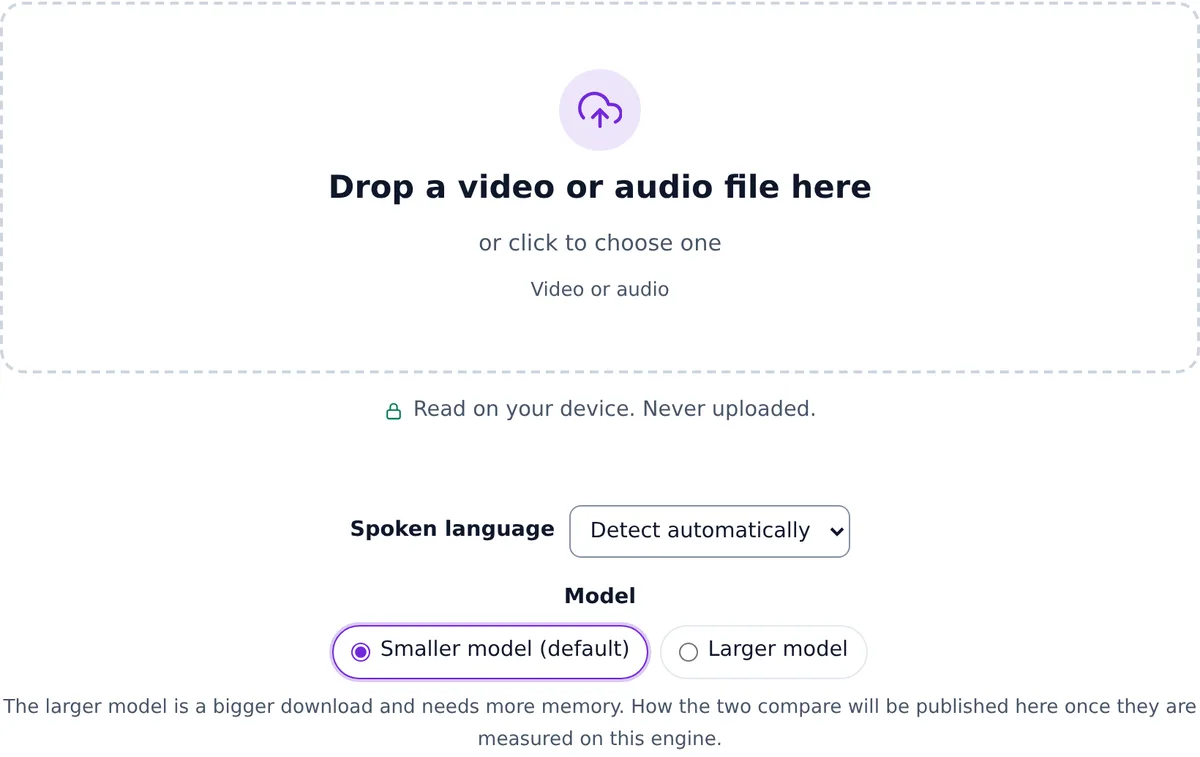
Drop the file on the box, or click the box to choose it; the keyboard reaches it too. The page checks that it is a video or audio file and reads it on your device. Nothing is uploaded.
-
2
Choose the spoken language and the model
Spoken language starts on Detect automatically: the page listens until it hears speech and keeps that language for the whole file. If you know the language, choose it; that also avoids a wrong guess on a file that starts with music. Model offers the smaller model (the default, about 60 MB to download) and the larger one (about 264 MB), which needs more memory. How the two compare on accuracy is not measured yet.
-
3
Wait for the first cues
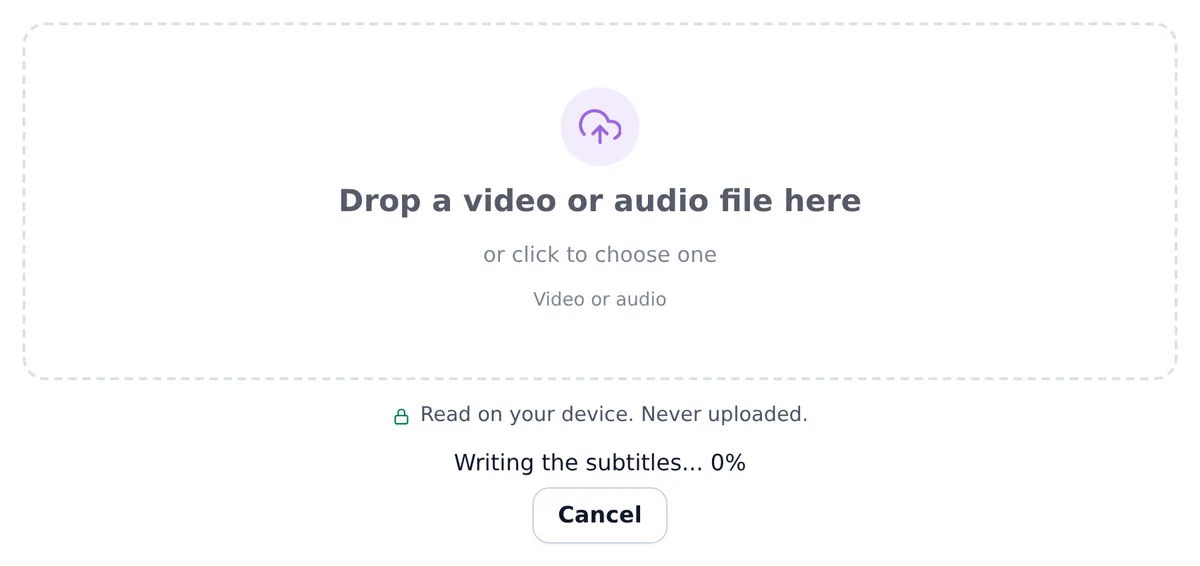
The status line walks through the work: "Reading the sound from your file...", then "Loading the model..." with a percent (a download the first time, then a read from your browser's storage), then "Writing the subtitles...". Once the page has measured some of the work, it adds an estimate such as "About 4 min left (estimated on this device)." Cues appear a few minutes of audio at a time, so you can start reading and fixing them while the rest is written. Cancel stops the run and clears what it made.
-
4
Check the cues over the picture
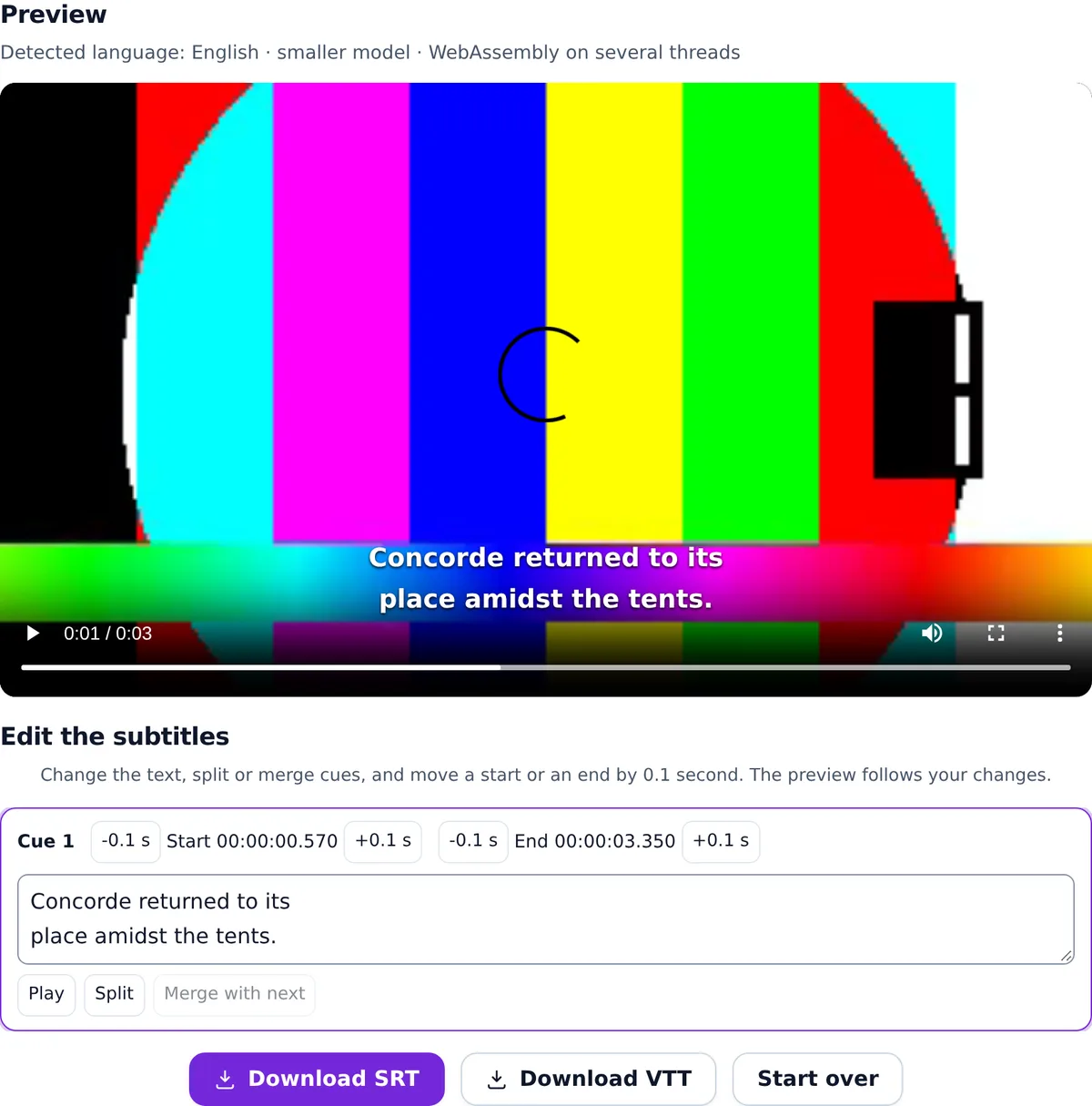
When the run ends, the status line says "Done in" and the time, and the line under Preview names the language, the model, and the engine build that ran, such as "Detected language: English · smaller model · WebAssembly on several threads". Press play: each cue shows over the video at its time, or under the player for audio, and the cue being shown is outlined in the list below.
-
5
Fix, split, merge, and retime
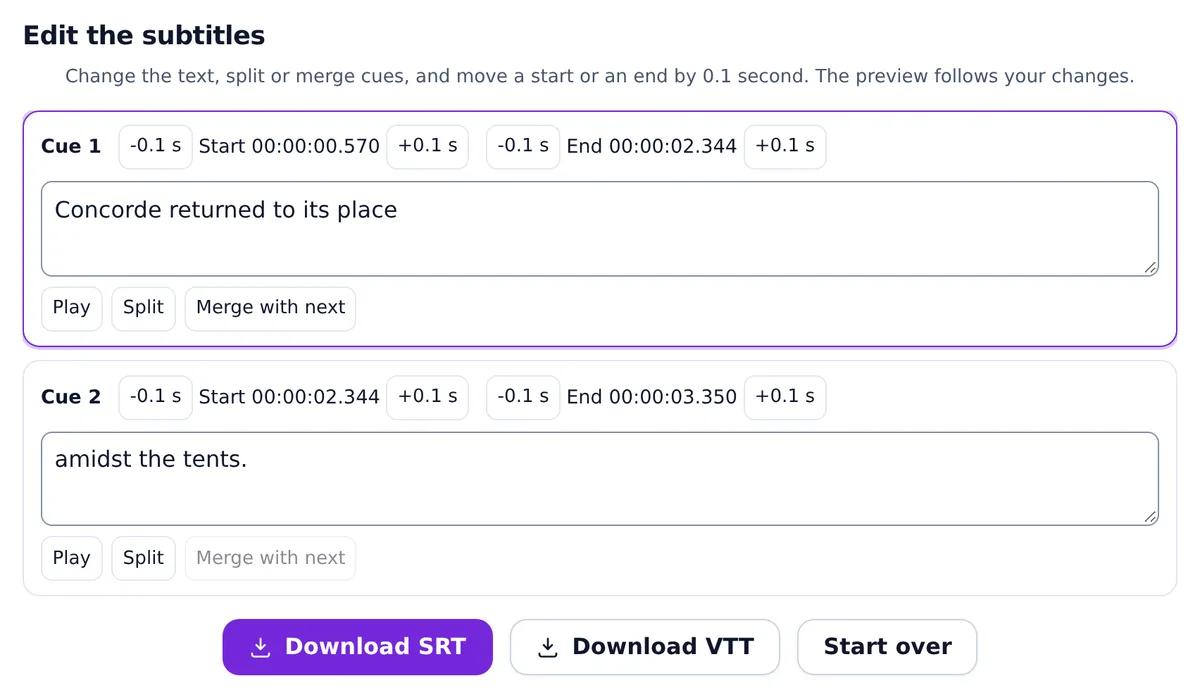
Type in a cue's box to fix a word; the preview follows as you type. To split a long cue, put the cursor where it should break and press Split: the time is shared between the two parts in proportion to their text. Merge with next joins a cue to the one after it. The -0.1 s and +0.1 s buttons move a start or an end by a tenth of a second, and Play jumps the video to that cue so you can hear the change.
-
6
Download SRT or VTT
Download SRT and Download VTT write the cues as they are at that moment, your edits included, and name the file after your video: interview.mp4 gives interview.srt and interview.vtt. The buttons are off while a run is going and when no cue has any text. Start over clears the result so you can add another file.


Screenshots of the tool on this site, taken on September 26, 2026, with our test clip: a sentence from the LibriSpeech corpus (CC BY 4.0, Panayotov et al., 2015) over generated color bars.
Why a subtitle is at most two lines
A viewer reads a subtitle while watching the picture, so each one has to be short enough to take in at a glance. The page makes every cue at most two lines of 42 columns (a wide character, as in Chinese or Japanese, counts as two) and at most 7 seconds long, and keeps a short cue on screen for at least 1 second when the gap to the next one allows. Forty-two characters and two lines is also the limit in Netflix's English (USA) timed text style guide.
Your edits can go past those limits on purpose. A merged cue keeps two lines of 42 columns, but it lasts as long as the two cues did, even past 7 seconds, and a cue you type into is not cut again to fit. If a cue reads as too long when you play it back, split it.
Every message, and what to do
The status line under the drop zone uses these words. Numbers such as 500 MB, 1 hour, and the time are filled in for your file.
| The page says | What it means and what to do |
|---|---|
| This file is not a video or audio file. Choose a video or a recording. | The file's type says it is something else, such as a document or an image. Choose the video or the recording itself. |
| Your browser cannot read the sound in this file. Try the file in another format. | The browser has no decoder for the file's sound. Save or export it as MP4 or WAV and try again, or open the page in another browser. |
| This file could not be read. It may be empty or damaged. Try another copy of the file. | The file has no readable sound, often because a download or a copy stopped partway. Use another copy. |
| This file is larger than 500 MB, the most this page can read in this browser. | Your browser cannot read this file a slice at a time, so the page has to decode it whole, and it stops at 500 MB. A shorter or smaller file, or another browser, gets past it. |
| This file is longer than 1 hour, the most this page can read in this browser. | The same whole-file limit, by length. Cut the file into parts of under an hour, or try another browser. |
| Your browser ran out of memory. Close other tabs, or choose the smaller model. | The larger model needs more memory than the smaller one. Close other tabs, choose the smaller model, and run the file again. |
| No speech was found in this file, so there are no subtitles. | The page found no speech to write: the file may be music only, silent, or very quiet. The downloads stay off, since there are no cues to write. |
| Part of this file could not be read. It may be damaged or cut short. The subtitles stop at 00:12:34; you can still edit and download them. | The page kept every cue it made up to that point. The VTT file says where the subtitles stop in a note that players do not show; the SRT file holds the cues only. |
| The transcription files could not be loaded from this site. Check your connection, reload the page, and try again. | The engine or the model did not download. Check your connection and reload the page. |
| Something went wrong while making the subtitles. Try again, or reload the page. | An error the page has no specific words for. Reloading starts a fresh engine; if it keeps happening, try another browser. |
Getting cleaner subtitles
- Choose the language when you know it, rather than relying on detection, especially for a file that opens with music or silence.
- Try the larger model on a short part first and compare. It is a bigger download (about 264 MB) and needs more memory; how the two compare is not measured yet.
- Check the times by ear. Play a cue, and if it appears early or late, move its start or end with the 0.1 s buttons. How the model makes the cues explains where the times come from.
- Pick the file your destination takes. Which file to download compares SRT and VTT line by line.
Ready to try it?
Open the tool with a short clip of your own to walk through all six steps before you run a long file.
Make subtitles from your videoMaking subtitles
Continue exploring this topic
Related topics: Privacy and trust
Try it on your own video
Runs in your browser. Your file never leaves your device.